Photos Rapid Captions Pro: For Your Cropped Photos
The most obvious and quick way to process, caption, and organize your images locally. Requires Windows 10 or above.
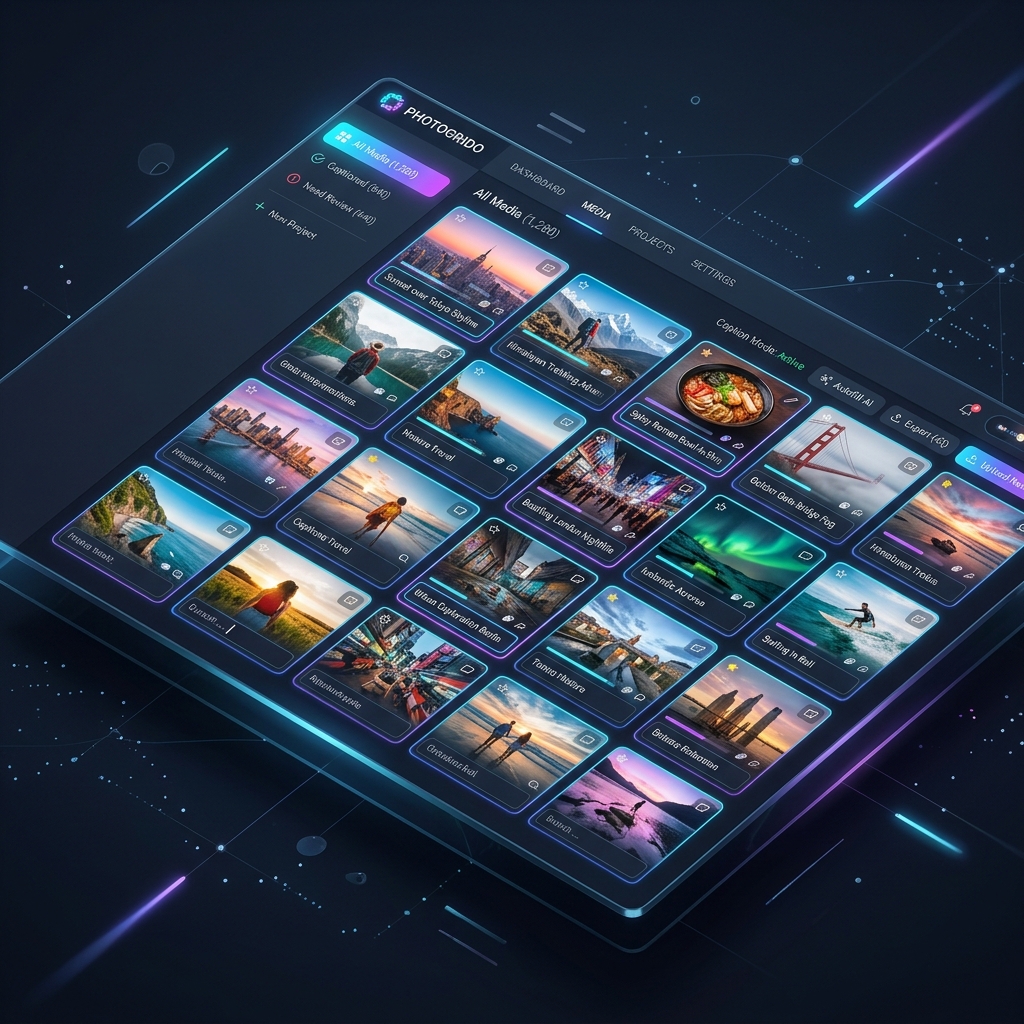
Why use Photo Caption?
Designed for efficiency, privacy, and simplicity.
Lightning Fast
It will efficiently attach captions to JPEG files or PNG if you want slightly higher resolution.
100% Private
We do not collect, store, or transmit any personal data, photos, or metadata to external services. All processing is performed locally on your computer.
Runs on Anything
You can use your high-end desktop, or buy a basic $100 HP laptop from eBay and use it seamlessly. No admin rights required.
Pro Version
- ✓ 10 Free Captions Trial (Try before you buy)
- ✓ Unlimited captioning on your computer thereafter
- ✓ Accessible for Windows 10+
- ✓ Beautiful, obvious, and quick user interface
- ✓ No tracking or data selling
Approve Microsoft Shop "Unknown Publisher" warnings with confidence. This developer is fully verified.
Photo quick caption agent operations manual
The “Photos Rapid Captions Pro” AI agents efficiently attach captions for multiple screen grabs of your photographs. Alternatively, they can create PNGs of detailed graphs or artwork.
You have been digitising your old photographs, whether one at a time or in a single JPEG file. However, you may have too many photographs.
- Assuming you have a decent quality monitor or screen running Windows, this package of AI agents allows you to quickly crop various photographs into a single folder in your Downloads folder, with today’s date. There’s also a PNG alternative.
- After activating your download for purchase or free trial, the executable file should create three tabs: JPEG, PNG, and CAPTION. You may also need to copy the “Run…” files for each tab.
- The JPEG file format is the fastest and most efficient way to compile most photographs. However, for fine details in some artwork or graphs, slightly better grain in larger PNG files may be needed. For PNG, use the PNG tab instead of JPEG. Everything else remains the same.
- Locate these tabs on the left-hand side of your screen.
- Open your file containing one or four photographs on one file, filling about 80% of your screen.
- Using Windows and the mouse wheel, you should be able to resize each photograph to fill most of the screen individually.
- Double-click the JPEG tab.
- To copy a rectangle, left-click at the top left corner and drag the pointer to the bottom right. Release the left button and move back to the top left corner to press “Copy”. The copied rectangle is saved in your Downloads folder with a folder displaying today’s date in the year-month-day numerical format (e.g., March 1, 2026 becomes 260301). Let’s call this date JPEGdate.
- The required copy rectangle is also displayed. You can copy multiple photographs sequentially. Increasing the size of each individual photograph improves the resolution of the copied image.
- Once you’ve copied the desired sequence, they’ll appear in order in your Downloads folder, with JPEGdate and a sequence of numbers in brackets for each photo.
- Now, with a folder named JPEGdate containing 20 or 30 photos, the next tab allows you to efficiently add captions to each. You can back up these photos elsewhere if desired.
- If you’re happy with the numbered photos in JPEGdate, you can easily change their captions to your liking. You can use Voice Dictation (highly efficient on an iPhone) or type. Align each caption with the corresponding photo number in the JPEGdate folder.
- For example, while viewing your photos on your PC, you could dictate on your phone:
- "1. June 1, 2022. The plane we left for Spain."
- "2. The train we hopped onto."
- "3. And so on…"
- The number format is as shown above. It doesn’t matter if there’s a full stop at the end of the line; it’ll be ignored.
- This file will be in your Documents folder with the same name as the JPEGdate name you used for your photo collection in Downloads.
- The software handles RTF files from Wordpad, Word.doc files and TEXT files from Notepad. However, you must close the Caption file before use.
- Each Caption line needs a hard number. If the caption numbers were generated in Apple Notes or Word, you might need to copy the file into a text message on your phone, send it to your own number, copy it into an email to yourself and then paste it into a file in Documents.
- Now, you’ll have a JPEGdate file with all captions in sequence, matching the JPEGdate folder in Downloads. Double-click the CAPTIONS tab, and it’ll prompt you for the JPEGdate number. Enter it and press enter.
- The Downloads folder will create a MyImages folder containing all the previous photographs from the JPEG tab sequence and those in the main folder with captions in numerical order. You can check the captions against the original photos in MyImages or elsewhere. These files can also be copied elsewhere.
- To continue this process, change the folder names in Downloads and Documents from today’s date.
- I hope this worked well.